Knowledge base
Competition Network
Connecting to the competition environment, VDI access, and permitted tooling.
VDI Access
What types of VMs will we be given during the competition?
Every team will receive an identical set of Unix and Windows systems per competitor (six each) from which they will be able to access the “in-character” environment of the competition. This will result in twelve total systems for each team from which they perform their penetration test. The Unix system will be Kali Linux, if possible given the hosting environment, or a similar Unix system such as Ubuntu or Debian, with tools pre-installed. Windows hosts will be a Windows 2016 installation with minimally installed tools.
Link to this answer Updated September 17, 2020
How will we connect to the competition environment?
Competition VPN Network Instructions
As part of CPTC this year competitors must connect via a Wireguard VPN. While Wireguard is easy to use, this instruction guide is meant to provide a way to provide step by step instructions.
Installing Wireguard
Wireguard comes with official installers for the majority of platforms including Windows, macOS, and most Linux distributions. Please refer to this document for the installer for your appropriate system https://www.wireguard.com/install/. Plenty of guides are available for installing Wireguard, refer to these if you have issues or create a support ticket if you still have issues.
Getting your Wireguard Profile
Each team will be provided a set of Wireguard profiles available from the Competitors Portal. Please note the following common issues:
- Do not attempt to put multiple blocks into a single configuration file, that will not work properly.
- Make sure each competitor has exactly one configuration as all competitors need a unique Address line in the configuration.
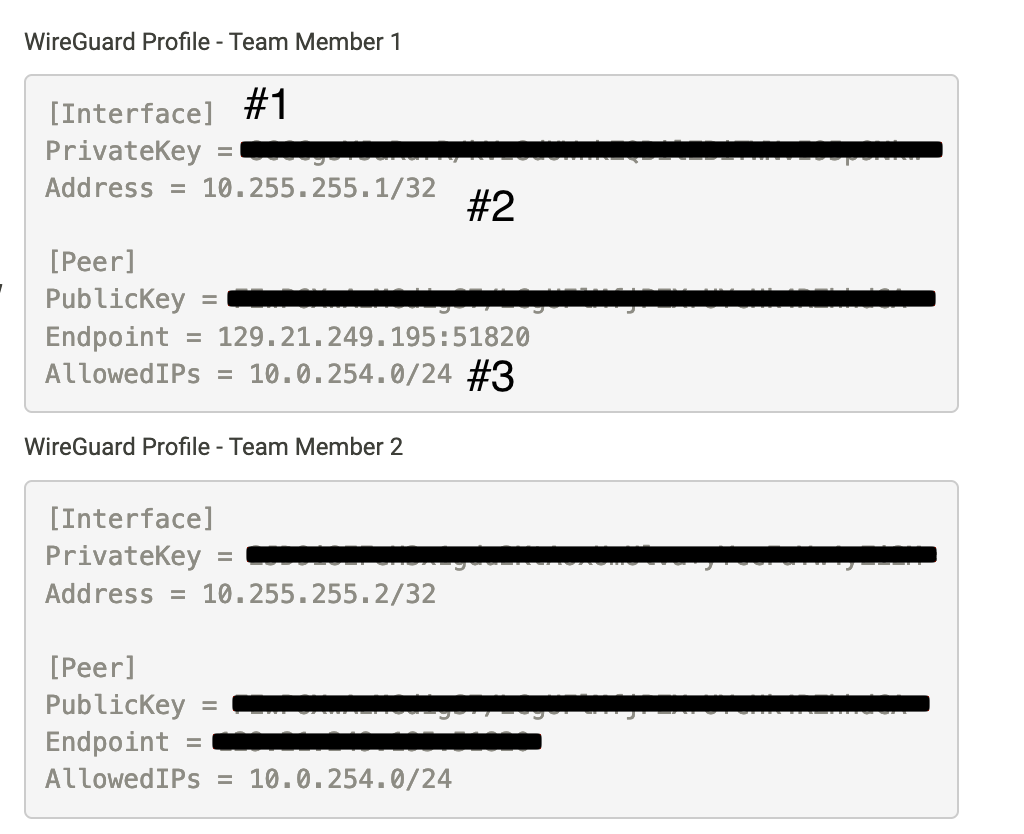
- WireGuard configurations should be saved as plain text.
- This Address is the “Client VPN IP” ensure no two competitors have the same IP address or configuration file. This is often a manual step on Linux.
- The 10.0.254.0/24 is the Jump Box (client) range for you to connect to. The VPN cannot be connect to things outside of this range. You must use the Kali or Windows jump boxes to connect to the environment.
Connecting
Below are the instructions to connect to the VPN on your respective platform:
Windows
- Ensure the Wireguard Client is installed on the system in question
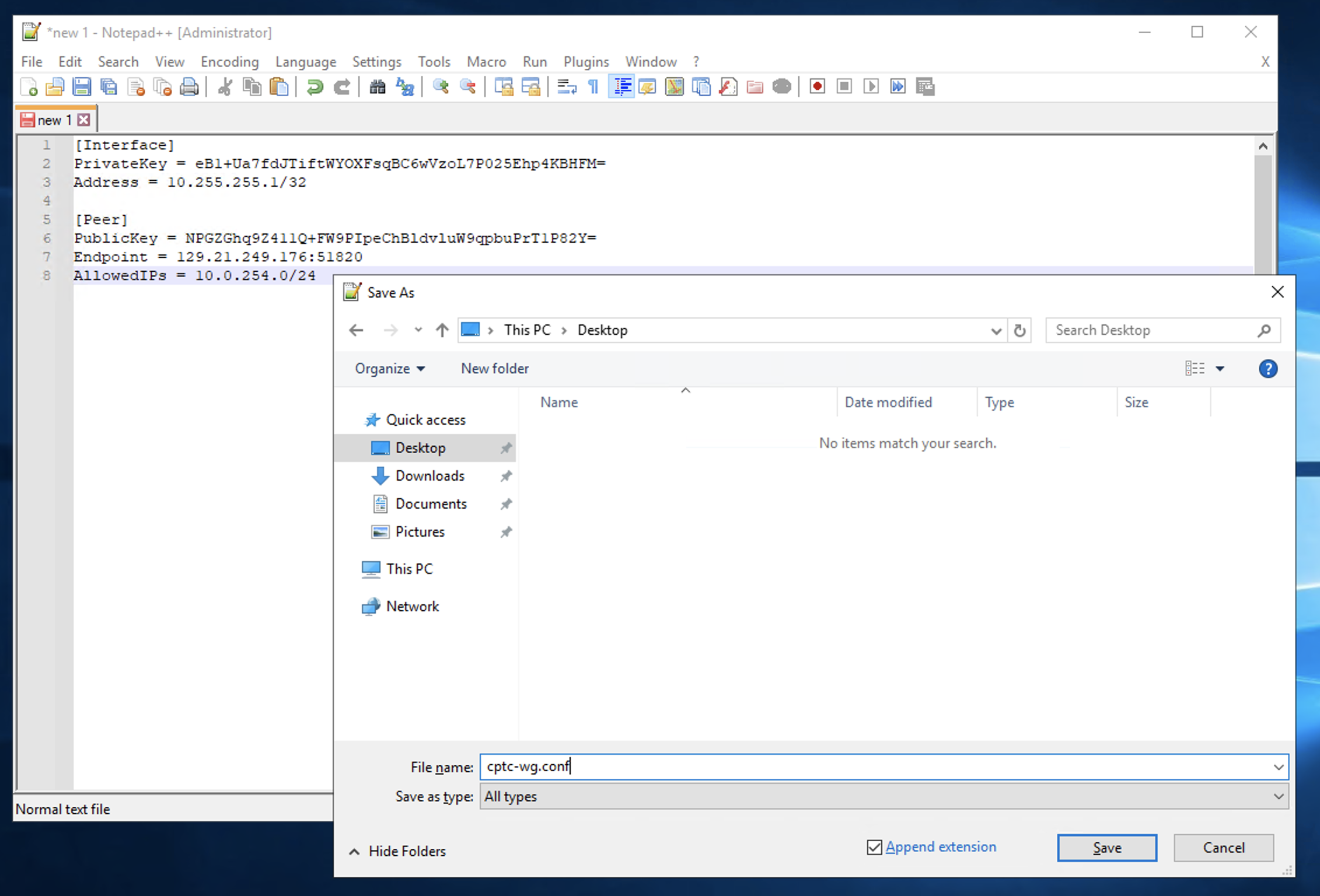
- Use a text editor such as VSCode or Notepad++ to save the configuration file. Do not use notepad or Wordpad as they can corrupt the line endings and make the file unusable for Wireguard.
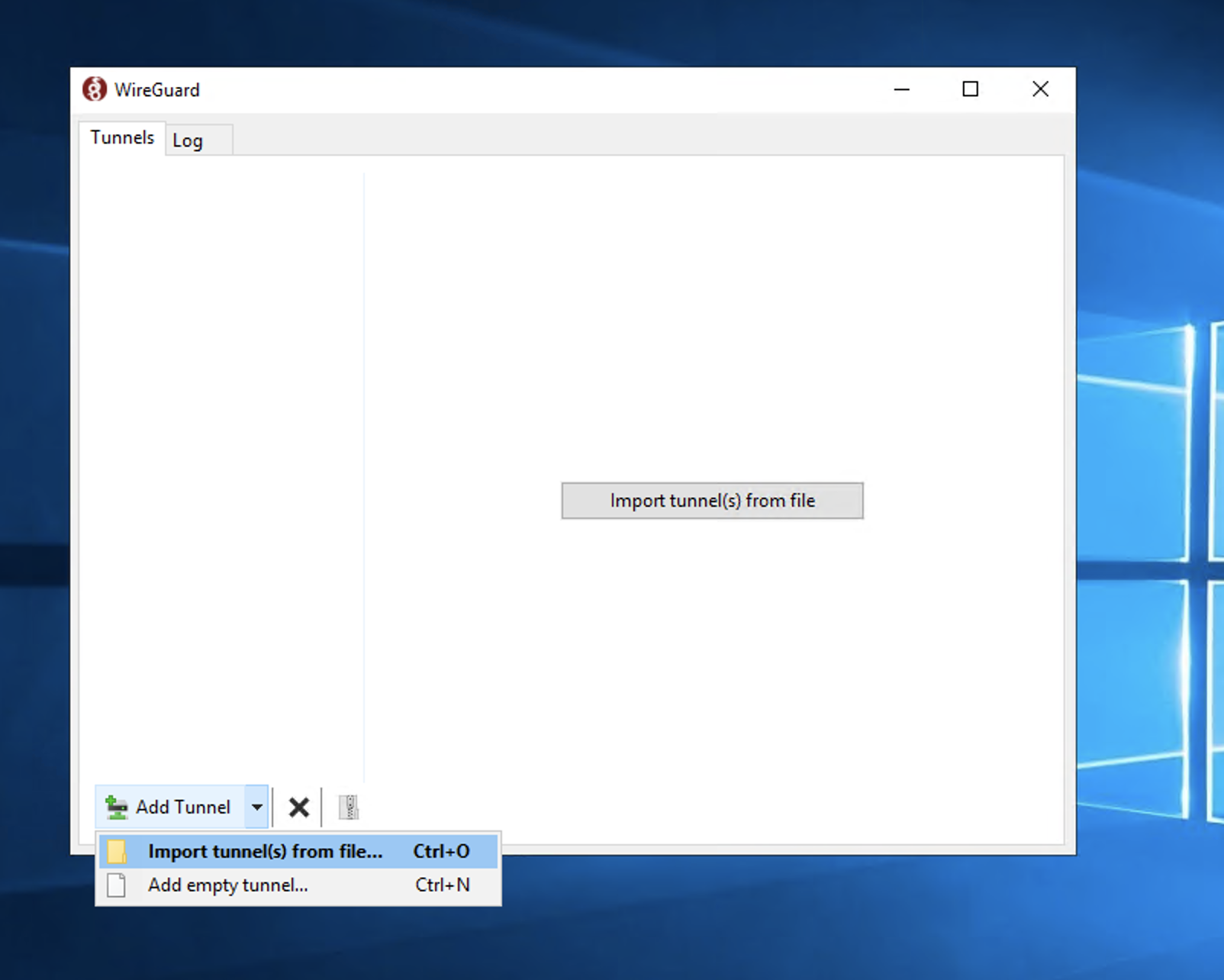
- Open the Wireguard client and open the Import Wireguard Config
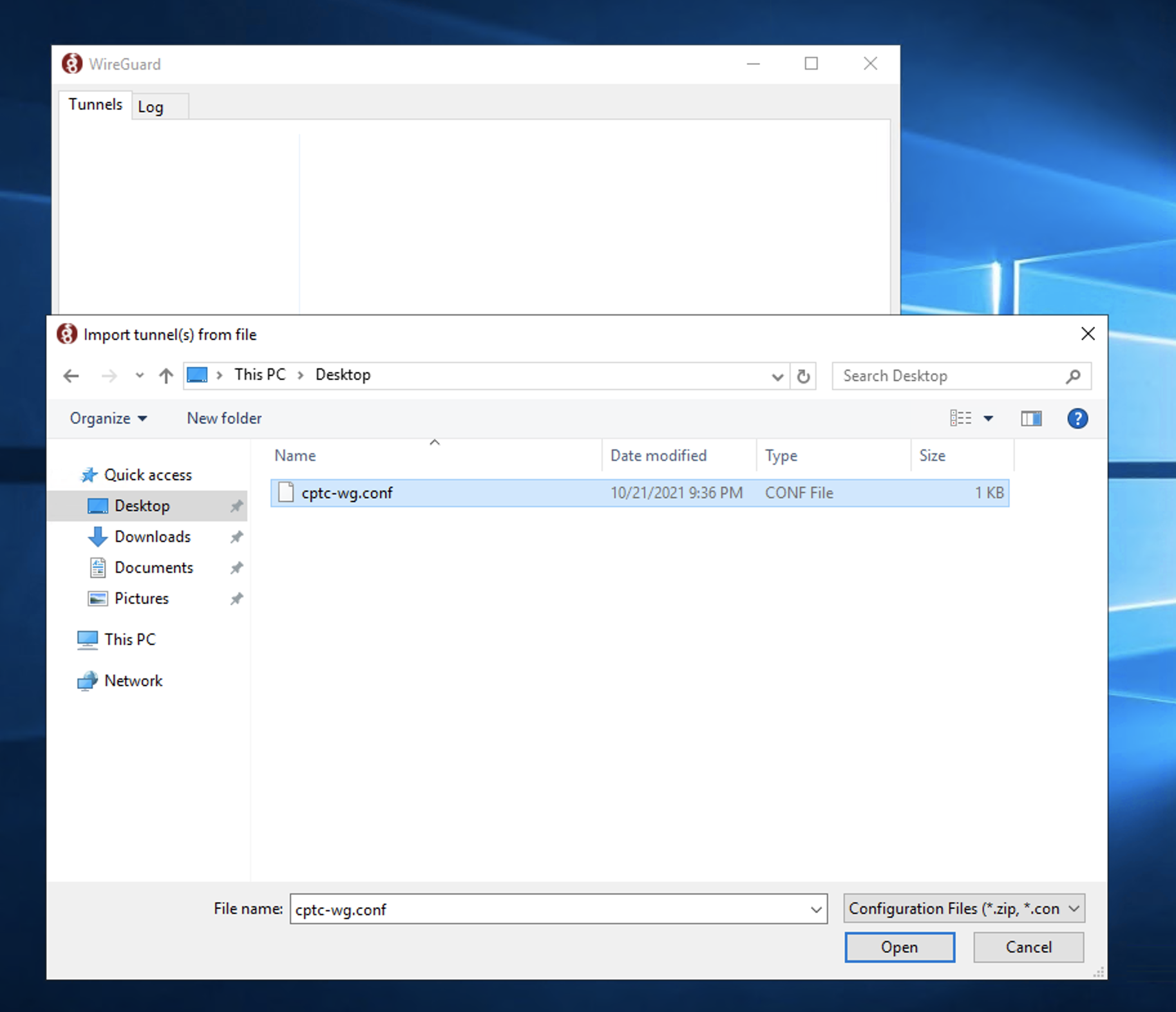
- Import the configuration and ensure the configuration matches the file
- Click “Activate”
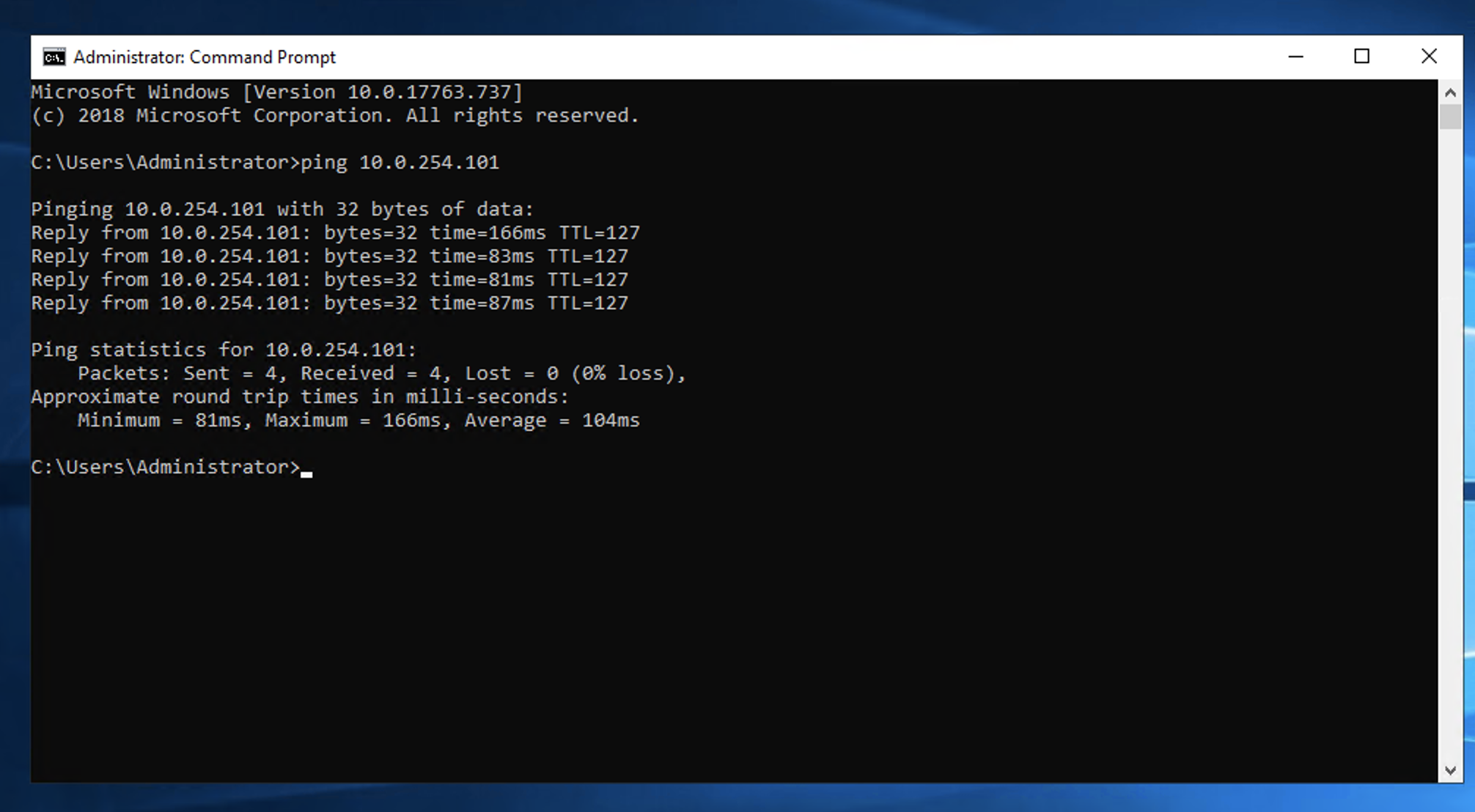
- Open Command Prompt or your favorite terminal and ping a host in the environment
macOS
- Ensure the Wireguard Client is installed on the system in question, alternatively you can use Homebrew to install the wg client, however that is not covered here. It is recommended you use the graphical client.
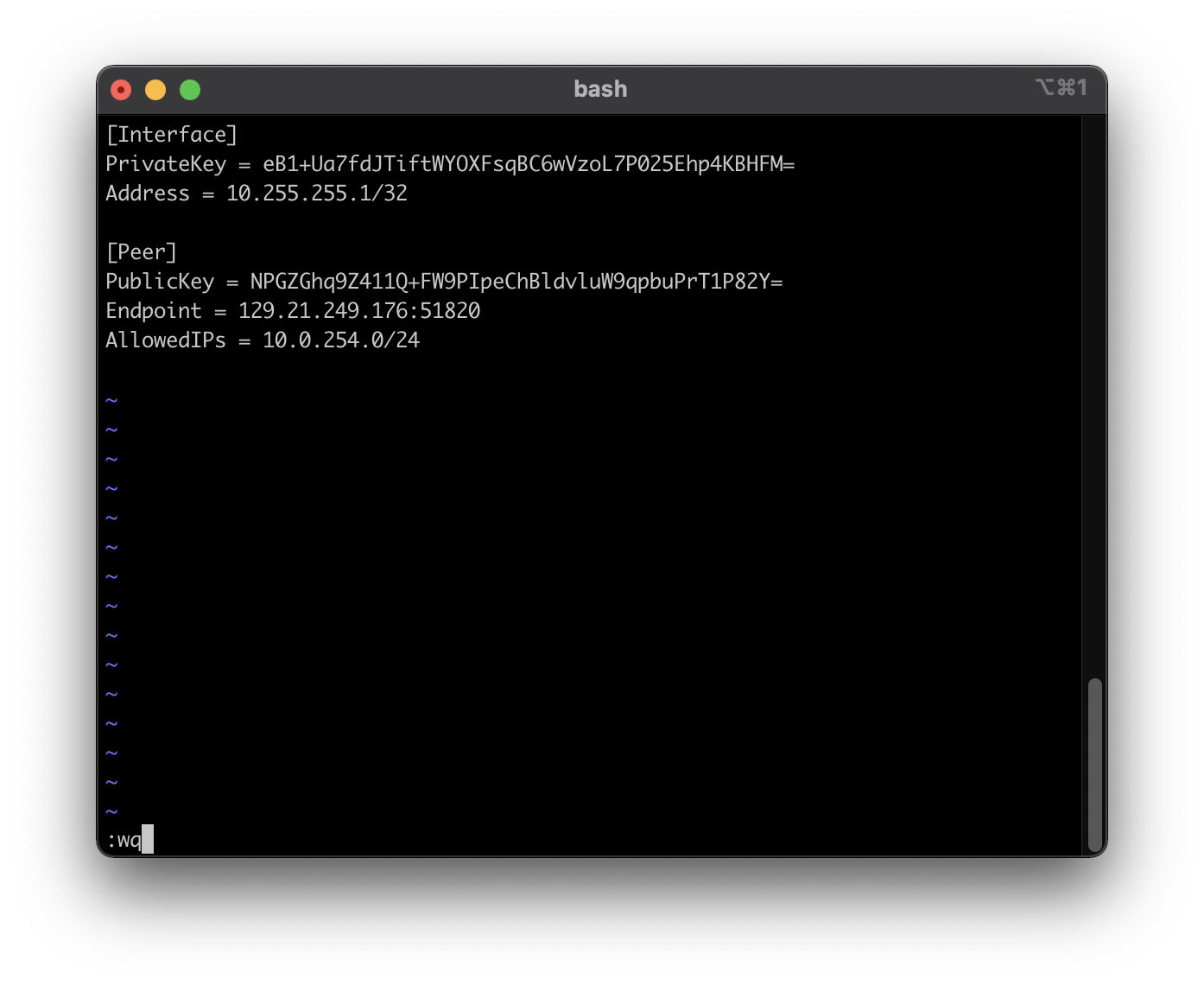
- Use a text editor such as VSCode, BBEdit, vim, etc. Any text editor can be used, just ensure the file is saved in a place you can access (macOS Security Restrictions can prevent access to certain directories, generally your home folder is a safe location)
- Open the Wireguard client and open the Import Wireguard Config
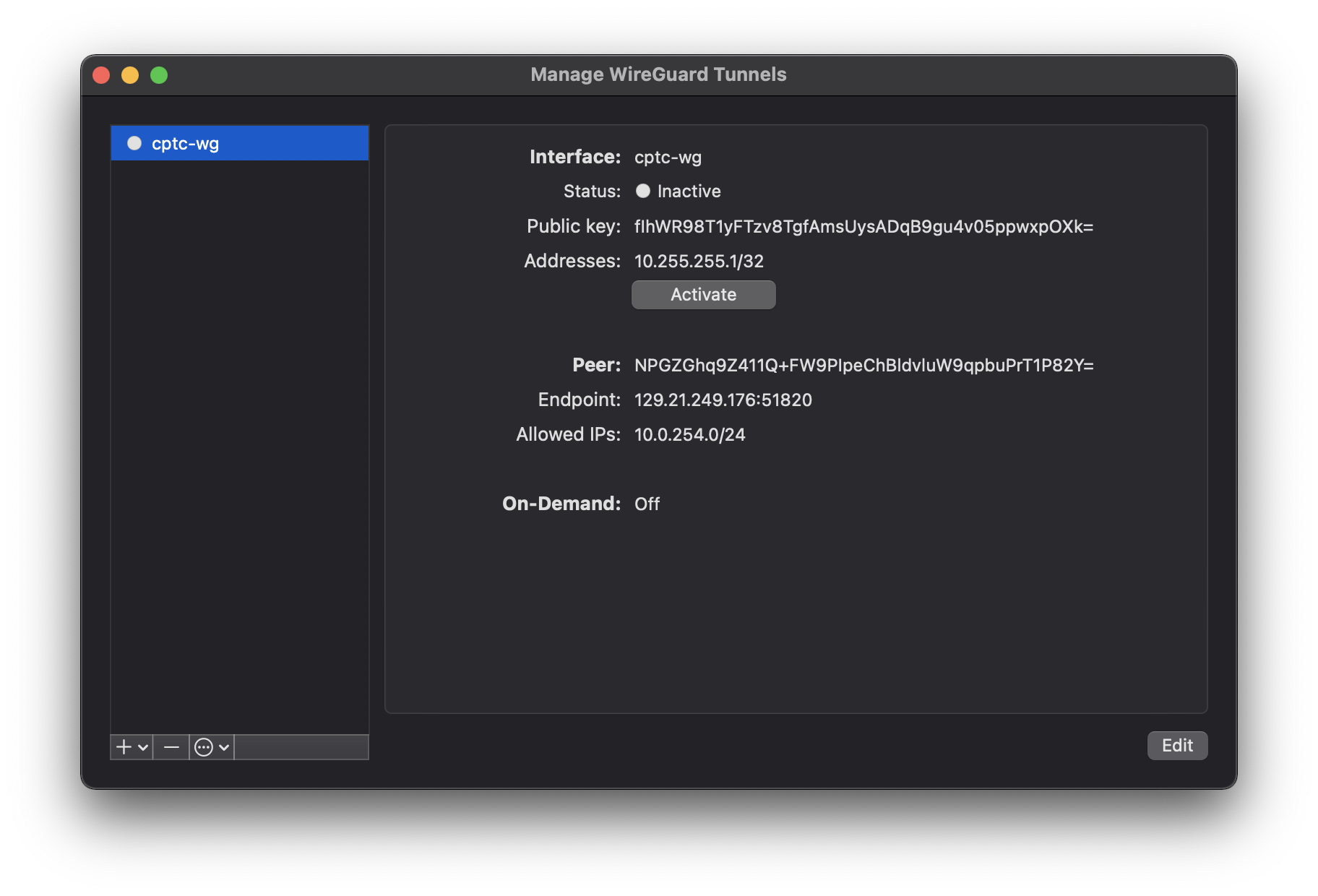
- Import the configuration and ensure the configuration matches the file
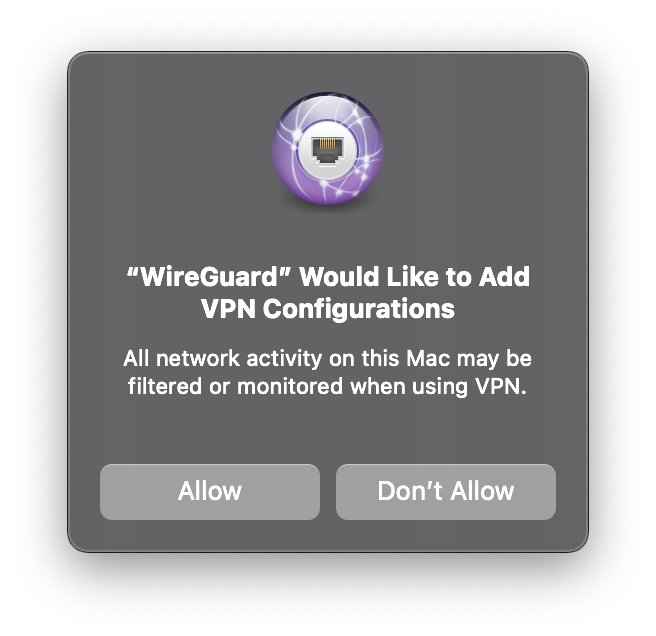
- Click “Activate”, please note you may be required to approve network monitoring and access before this will work.
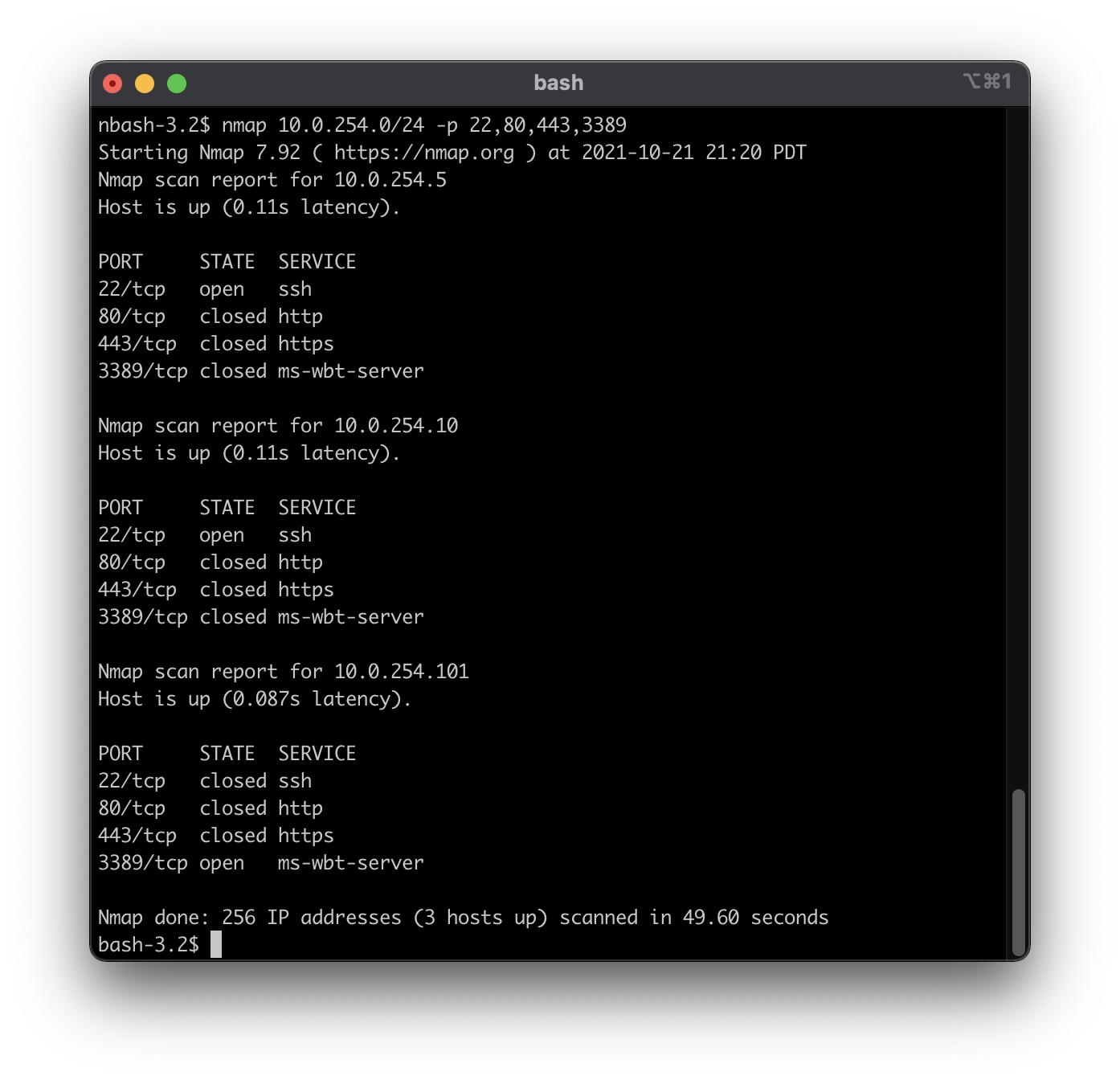
- Open another Terminal and attempt to ping a client in the environment
Linux
Many Linux distributions are now providing helper scripts or service file to enable Wireguard in an easier manner. However these vary by distribution, please refer to your distributions documentation if you wish to use these. The guidance before is agnostic and can be used on any (modern) Linux system.
- Ensure the Wireguard Client is installed on the system in question. It is also recommended you have tmux or screen to launch the Wireguard session.
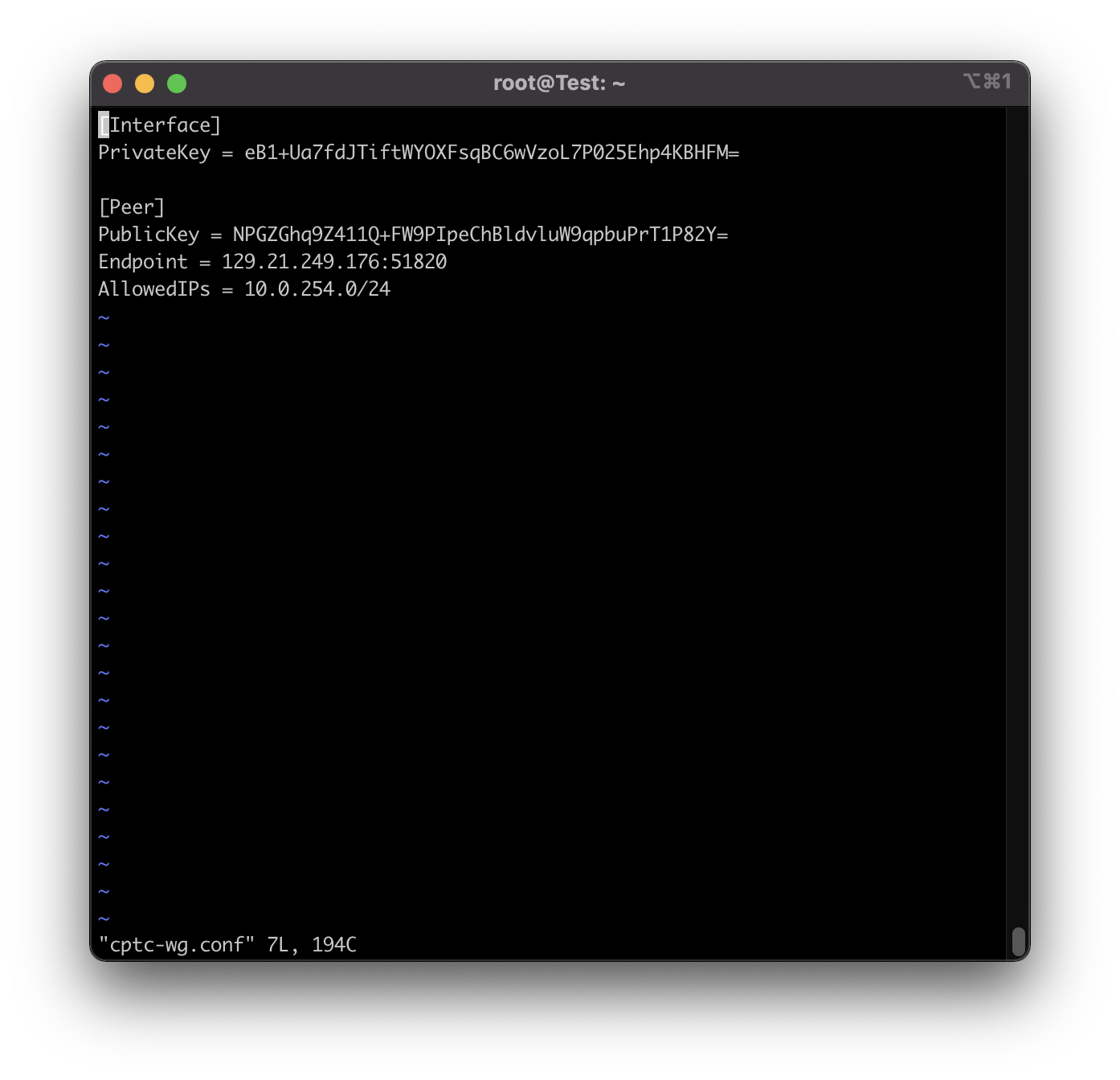
- Use a text editor such as vim or nano write the configuration file.
- Remove the Address line from the configuration file and save. Note the IP Address so you can add it to your interface.
- Open the Wireguard client and open the Import Wireguard Config
- Ensure IPv4 Forwarding is Enabled in your sysctl.conf
sysctl net.ipv4.ip_forward=1
- Create the Wireguard Interface and add the IP Address you saved from the configuration earlier.
ip link add dev wg0 type wireguard ip addr add 10.255.255.1/32 dev wg0
- Load the configuration into Wireguard
wg setconf wg0 cptc-wg.conf
- Bring up the interface and add finally add a route to the routing table
ip link set wg0 up ip route add 10.0.254.0/24 dev wg0
- Attempt to ping a system on the VPN
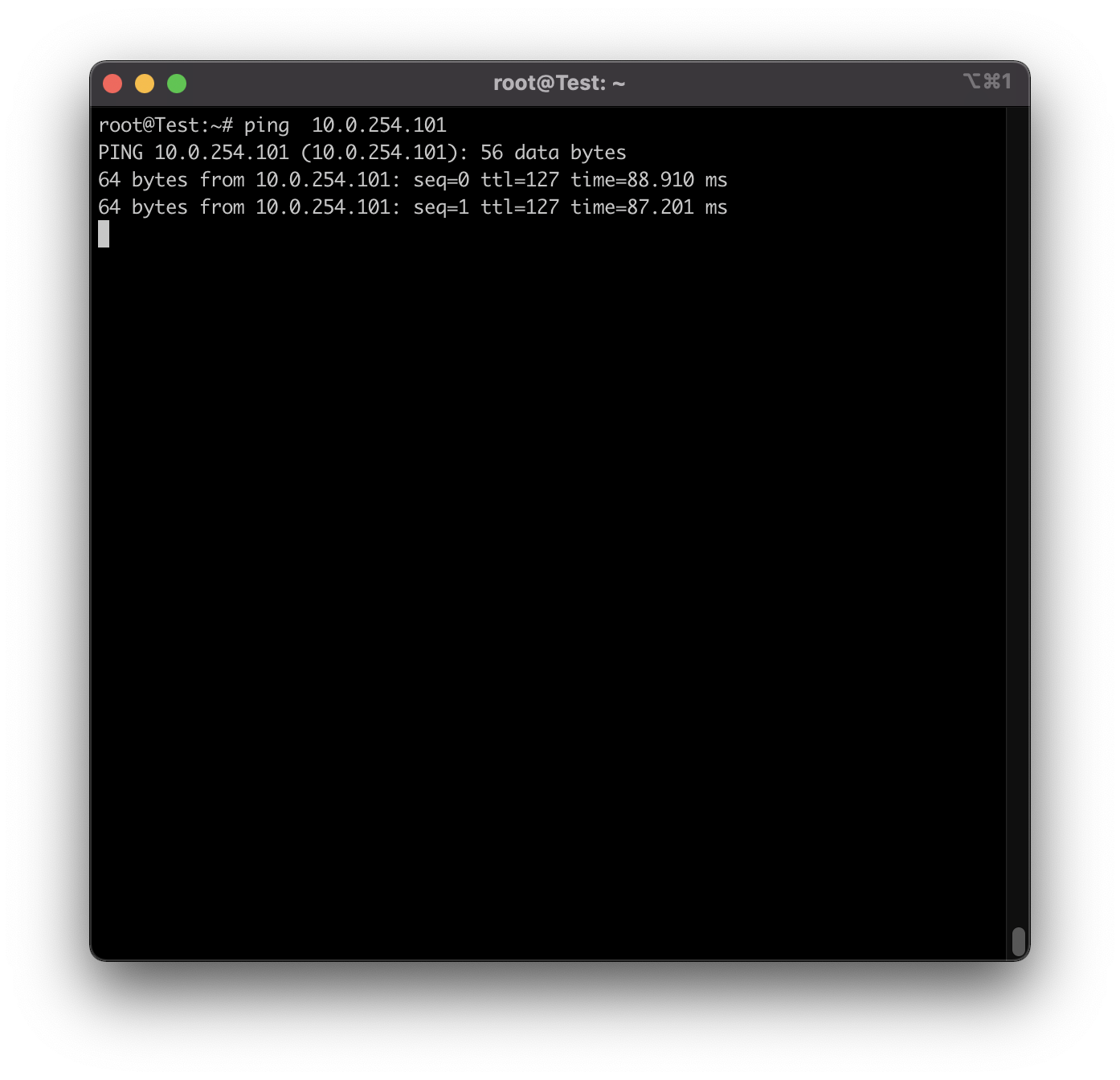
All commands combined:
sysctl net.ipv4.ip_forward=1
ip link add dev wg0 type wireguard
ip addr add 10.255.255.1/32 dev wg0
wg setconf wg0 cptc-wg.conf
ip link set wg0 up
ip route add 10.0.254.0/24 dev wg0
Link to this answer Updated October 22, 2021
Will we be using our own laptops or will machines be provided to us for pentesting?
Jump boxes will be provided to access the competition environment. See May I use my personal machine? for more information on BYOD regional events.
Link to this answer Updated September 29, 2023
Can we use *tool* to connect to Virtual Desktop environment?
Teams will use the software provided by the host university. No additional software may be downloaded or installed on the physical host machines and all work must be performed within the Virtual Desktop environment.
For BYOD regional events, competitors will be allowed to connect from their own machines. You may use a WireGuard VPN and Remote Desktop client of your choice.
Link to this answer Updated September 29, 2023
In the event our environment or VDI systems are not working, who do we contact?
Please submit a ticket through this system and we will respond shortly to resolve your issue.
Link to this answer Updated September 17, 2020
Network Information
Will the "client" systems be able to handle communication from all teams?
Each team is provided a separate instance of the in-character client network. Each of these environments are generated identically and are provided equally to all teams across all regions.
Link to this answer Updated September 17, 2020
How big is the environment we will be connecting to?
You will be responsible for providing a penetration test of the scope identified and provided to you by the “client” and their team. This scope may consist of a number of machines on different subnets, depending on what access is authorized by for your test.
Link to this answer Updated September 17, 2020
Is there a mechanism for machine resets if we break something?
Teams should be aware that they are performing testing against production assets of the client. Disruption to production environments will result in financial loss and brand damage to the client and its customers. Teams should therefore proceed with their testing in a manner appropriate for this environment. With this in mind, however, the client will often have industry standard disaster recovery processes in place. In the event of a system outage, please submit a ticket through this system and we will attempt to reset your device after we assess the damage to our environment and re-activate services for the client’s employees.
Link to this answer Updated September 17, 2020
Can we use commercial tools?
No commercial software, unless provided by the CPTC competition to all teams, may be used during the competition.
Link to this answer Updated September 28, 2020
If we have a license to a commercial tool, may we use it?
No commercial software, unless provided by the CPTC competition to all teams, may be used during the competition. Just because one university has access to a tool does not mean others will, creating an unfair competition environment.
Link to this answer Updated September 28, 2020
VDI Info
Pre-Installed Tools on VDI Hosts
Common pentesting tools are pre-installed. Teams should be ready to install other tools as needed (as permitted by the rules) to complete their assessments.
Link to this answer Updated September 17, 2020
Can I use my host system to perform testing?
In short, no. All activities must be performed through the Virtual Desktops. This includes all activities against the network and these systems will be the only ones that can be used to access the network. Competitors may not install any software or modify the physical host systems that they are using to access the Virtual Desktop systems. The environment has been designed so that no additional resource, such as GPU based password crackers or expanded CPUs, are necessary.
See May I use my personal machine? for details about BYOD regions where competitors may use their own personal systems to connect to the Virtual Desktops. Competitors may not use their personal systems for any additional activities related to the test.
Link to this answer Updated September 29, 2023
Will I need a password cracking system?
All passwords and hashes within the environment are designed to not require the use of advanced password cracking hardware, such as GPUs or cloud based solutions. Hashes will either be weak enough to crack on Virtual Desktop hardware during the competition, will be provided through other methods, such as OSINT, data gathering, left on systems, etc., or are significantly complex. Students may not use their own or regional host systems for cracking or processing passwords (or any information). Virtual Desktop systems are the ONLY systems which may be used for processing this data or cracking passwords.
Link to this answer Updated September 17, 2020
What specific tools are pre-installed on the VDIs?
Some tools may be pre-installed on the Virtual Desktop systems. Where possible all of the Kali Linux tools will be installed; however, depending on hosting environment this may not be possible at all times or each year. On the Windows systems, some basic tools such as NMap, PuTTY, etc. may be installed but this will change from year to year. Virtual Desktop systems will be provided with Internet access to download tools.
Link to this answer Updated September 17, 2020
Are we allowed to dockerize tools in our environment?
Teams are permitted to customize their Virtual Desktop systems with the software they deem necessary to complete the engagement. As defined within the official CPTC rules, tools must be publicly available to all teams and may not be stored behind a paywall, login, or account.
Link to this answer Updated September 17, 2020
What kind of tools can we use and install on systems?
Teams will be allowed to customize their Virtual Desktop Infrastructure (VDI) systems by using any publicly available tools. This means that anything which can be freely downloaded without requiring a signup or account may be used. Although real-world penetration testing firms may have proprietary tools they use, the spirit of this rule is to keep the testing environment level for all teams. For example, the following tools would be allowed:
-
Scripts or programs downloaded from publicly available, well known github repositories
-
Executables available for direct download from a company website
-
Binaries included within the repositories of major operating systems and distributions
-
Tools or scripts found within the “client” networks
The following forms of tools would not be allowed:
-
Items stored on private repositories or those made public but unknown or obfuscated, bypassing the “public” requirement
-
Tools requiring signing up for an account on a vendor’s website, even if anyone is allowed to create an account
-
Scripts pre-generated by teams and placed on Internet storage locations, even if public
For other systems in the environment, teams should coordinate with the client, as they may not appreciate having additional tools installed on critical servers; however, they may not mind either.
Link to this answer Updated September 28, 2020